
Master the basics of connecting Pokémon GO to Pokémon HOME and how you can transfer your mons between these two platforms.
Connecting Pokémon GO to Pokémon HOME lets you get more value out of your stored Pokémon by transferring them into HOME. From there, you can move them into other Pokémon games, giving you the chance to train and use them across multiple titles.
With the release of recent Pokémon games like Pokémon Champions, having a good lineup of stored Pokémon on HOME can give you flexibility when building a competitive team.
Moreover, you can also compete much better in the Z-A Royale if you can call some of your mons in Pokémon GO to fight by your side in Pokémon Legends: Z-A.
For this guide, we’ll give you a complete step-by-step process of linking your Pokémon GO account to Pokémon HOME, as well as how to transfer your GO Pokémon to other games.
Connecting HOME to your Pokémon GO account
To connect Pokémon GO to HOME, follow these steps:
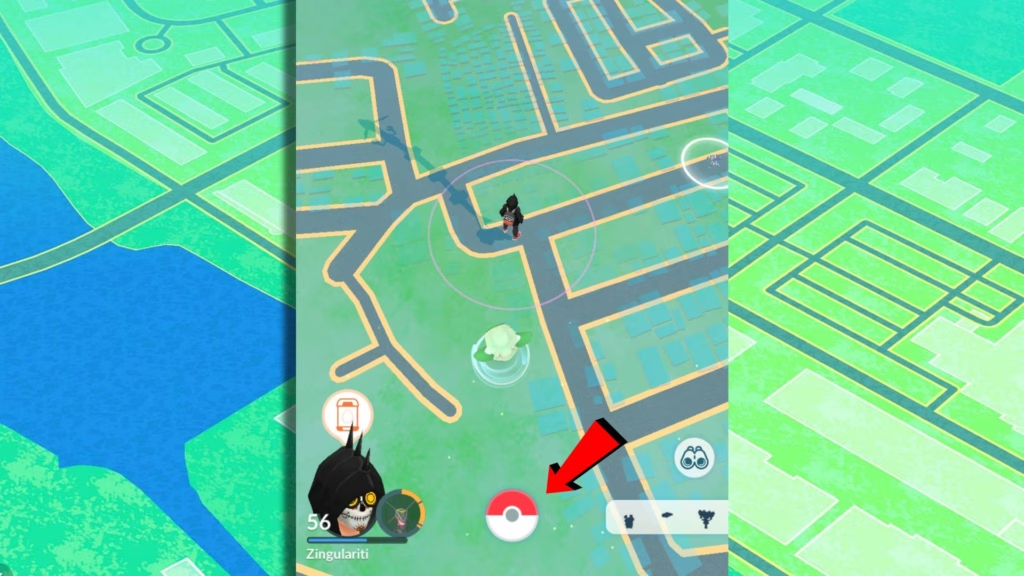
2: Click on Settings (gear icon).
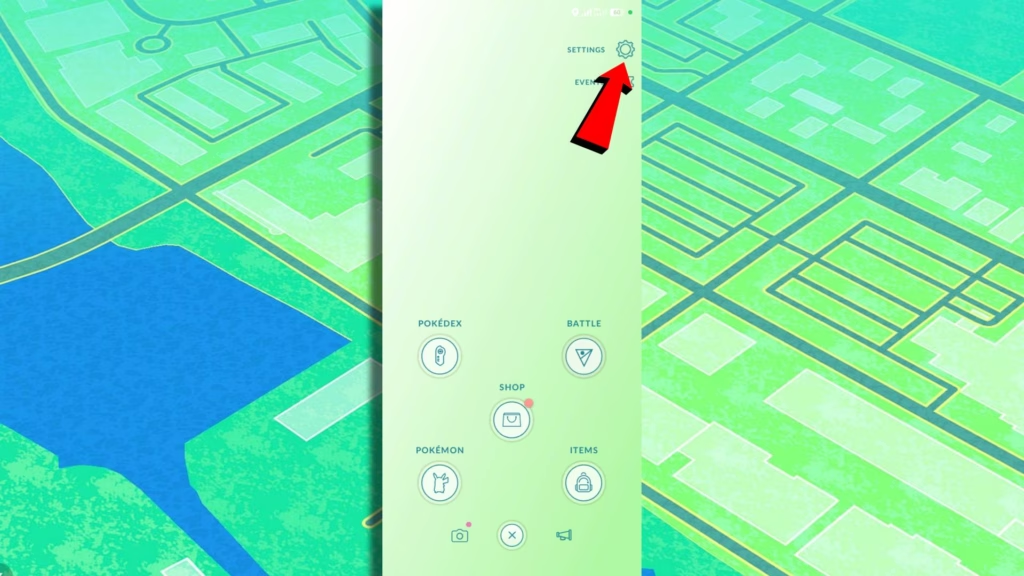
3: In the Settings, scroll down to Connected Devices and Services.
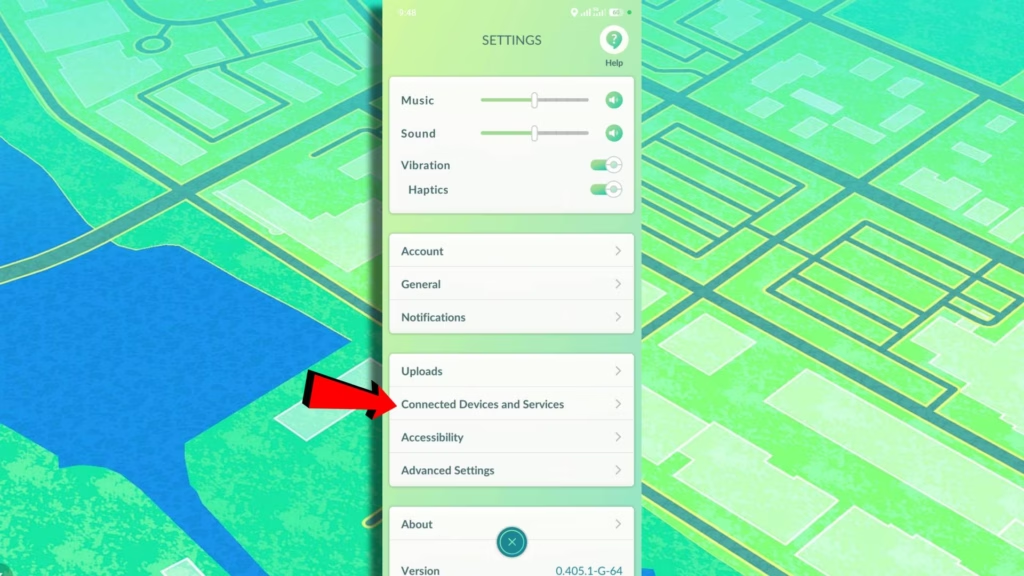
4: Press on Pokémon HOME.
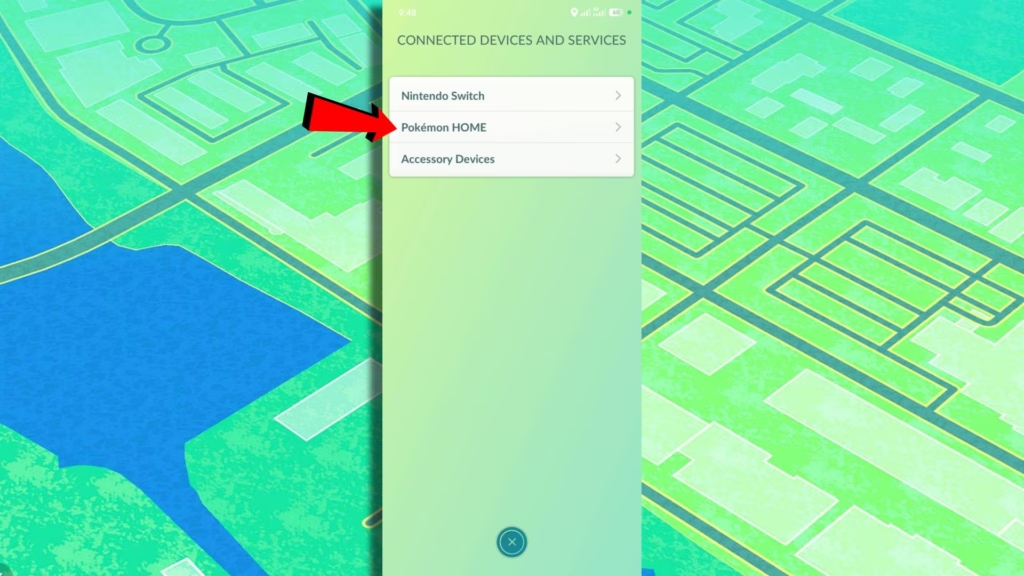
5: Sign in to your Nintendo Account.
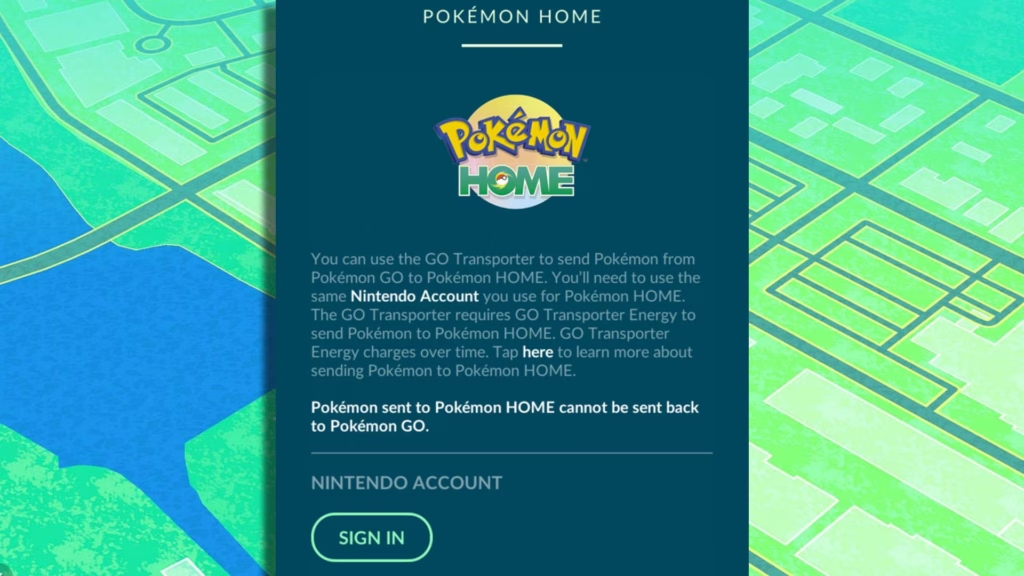
After signing in, your Pokémon GO is now connected to your Pokémon HOME account. Keep in mind that you can’t transfer Pokémon from Pokémon HOME back to Pokémon GO. Any Pokémon you send from GO to HOME is permanently moved and can’t return, so think carefully before transferring.
Transferring Pokémon from Pokémon GO
Once your Pokémon GO and HOME are connected, you can now easily transfer your Pokémon by opening the HOME feature in Pokémon GO’s Connected Device and Services options.
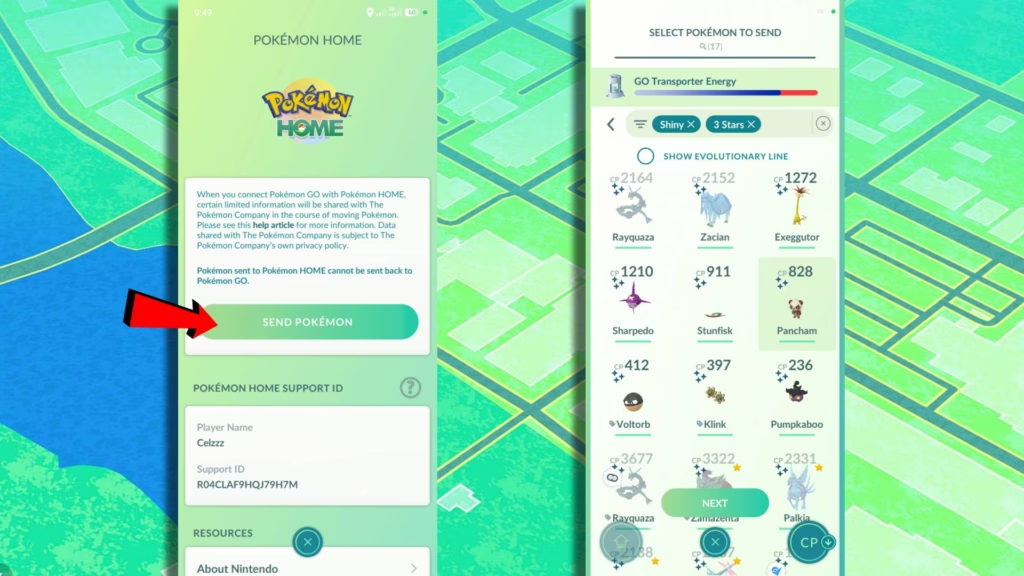
Instead of the Sign In button, you’ll see a Send Pokémon option. Press on it to see a note about the GO Transporter Energy, and press Continue to access your list of currently owned Pokémon in GO.
Select the Pokémon you want to transfer. Each one uses a portion of your GO Transporter Energy, and once you run out, you won’t be able to send more Pokémon.
The good news is that GO Transporter Energy recharges automatically over time. If you fully deplete it, expect to wait around 6 to 7 days for it to refill completely.
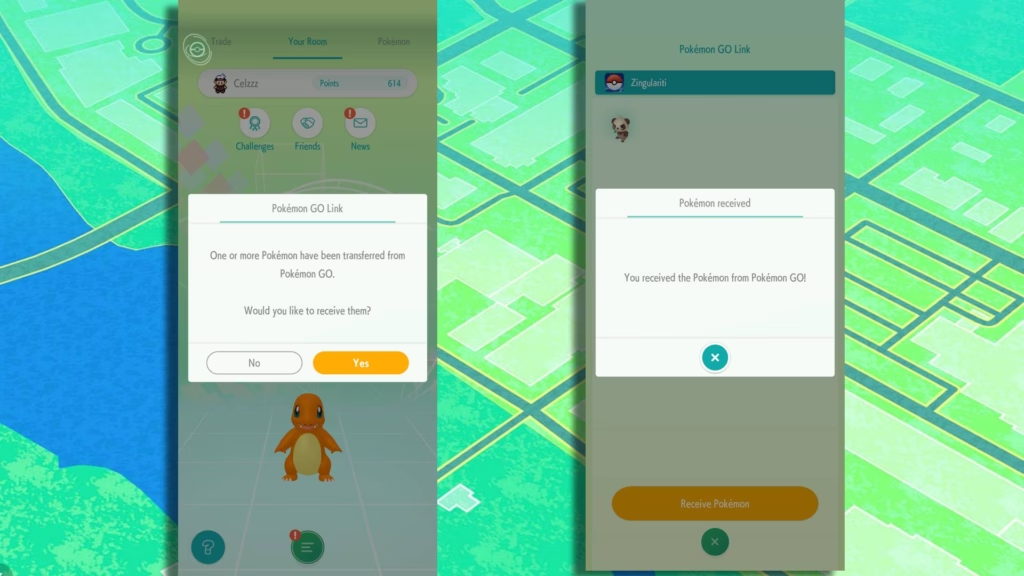
After transferring in Pokemon GO, head to Pokemon HOME to complete the process. You will receive a prompt to claim the transferred Pokemon. Tap “Yes,” then scroll to the Pokemon GO Link section.
Continue with the confirmation buttons, and there you go! Newly transferred Pokémon that you can use in a variety of mainline Pokémon games.