

The best graphics settings for The Finals will make sure you don't sacrifice performance quality for video quality.
If you’re playing The Finals on PC, you’ll want the best graphics settings. There’s a fine line between looking good and getting the best performance out of the game. We’ll show you exactly what you need to make the most of your time as a contestant.
How to change the graphics settings in The Finals
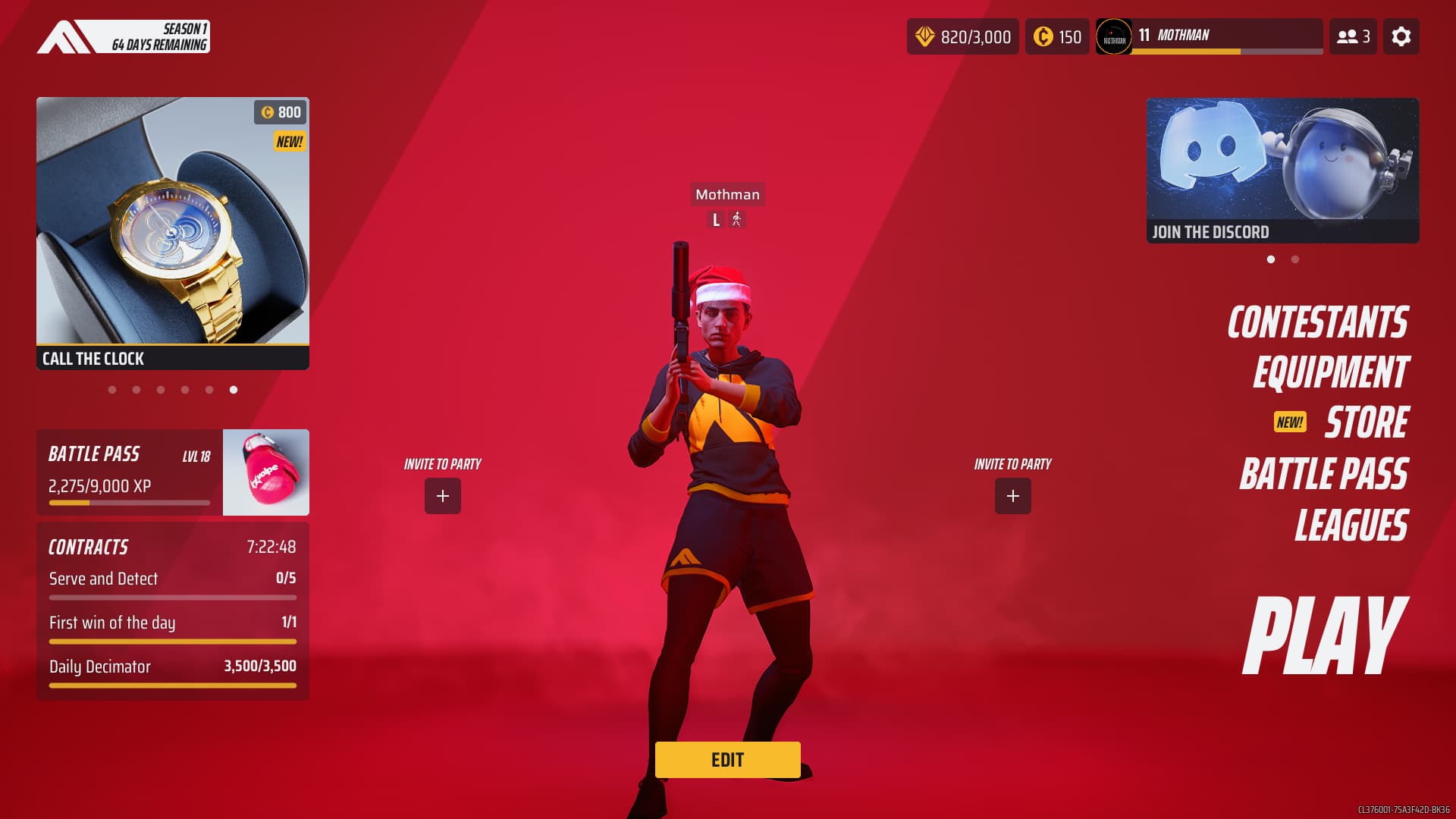
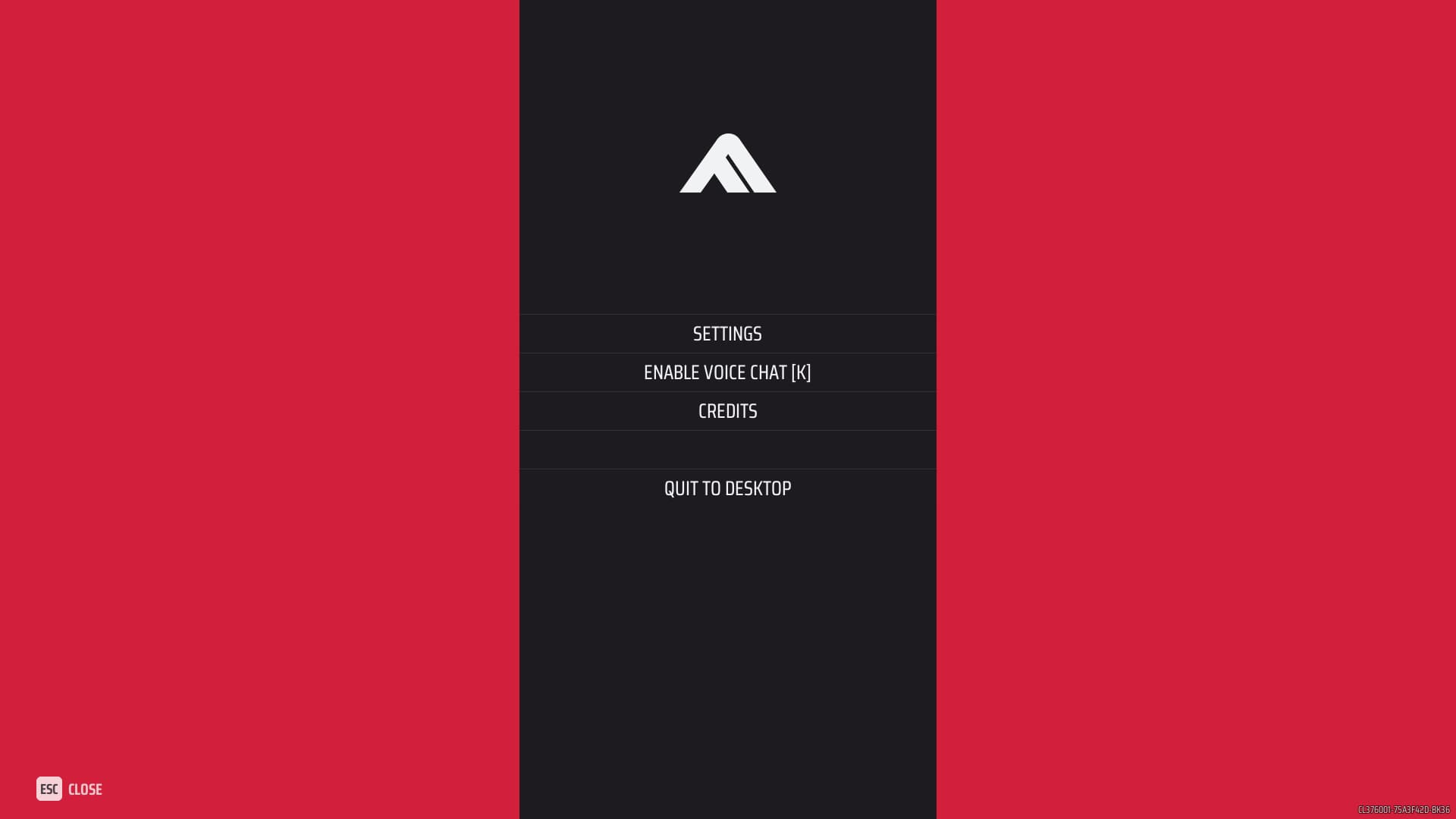

Firstly, you’ll need to know how to access the graphics settings. This is pretty simple, but we’ll walk you through it anyways:
- Open The Finals
- Press Esc to open the menu
- Select Settings
- Navigate to the Video tab
- Scroll through the different sections to change the graphics settings
What are the best graphics settings for The Finals on PC?
There are four sections under the Video settings in The Finals. Once you access the Video settings, you can then begin adjusting to the best graphics settings available. These will make sure everything remains stable on your system.
Of course, you can always toggle any of these if you need to. The best graphics settings we provide for The Finals can be used as a starting point, depending on what type of rig you are running. Not everyone’s PC can meet the same graphical demands.
Display and Resolution
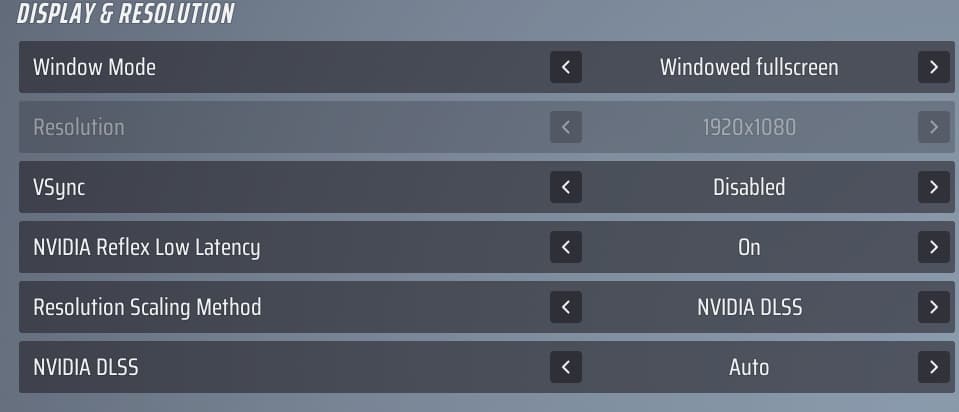
- Window Mode: Preference
- Resolution: Your monitor’s native resolution
- VSync: Disabled
- NVIDIA Reflex Low Latency: On
- Resolution Scaling Method: NVIDIA DLSS
- NVIDIA DLSS: Auto
Graphics
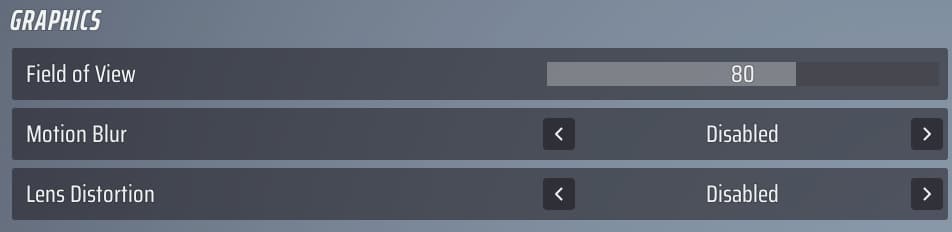
- Field of View: 70-100
- Motion Blur: Disabled
- Lens Distortion: Disabled
Ray Tracing

- NVIDIA RTX Global Illumination: Static
Quality
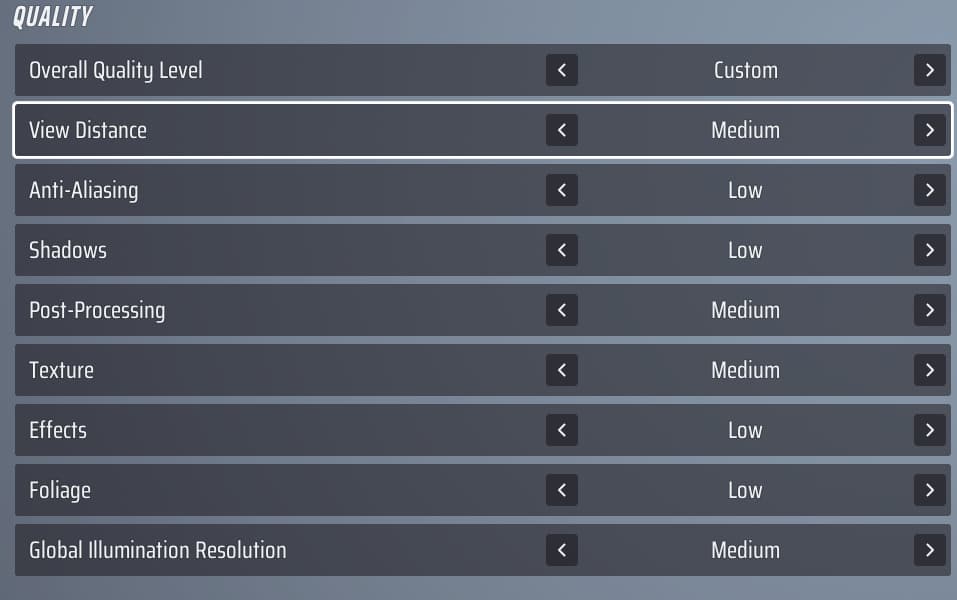
- Overall Quality Level: Custom
- View Distance: Medium
- Anti-Aliasing: Low
- Shadows: Low
- Post-Processing: Medium
- Texture: Medium
- Effects: Low
- Foliage: Low
- Global Illumination Resolution: Medium
Stay tuned to esports.gg for more esports news and coverage of The Finals.