
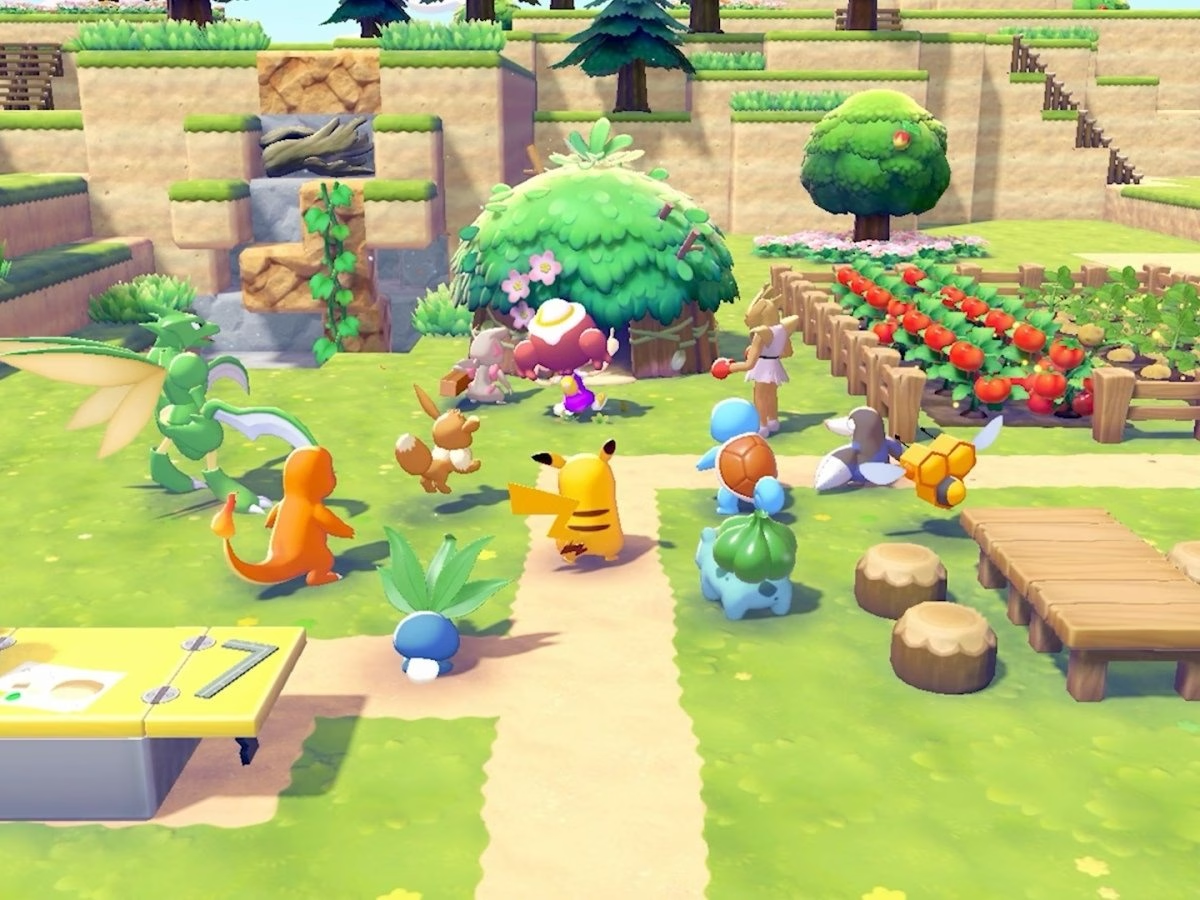
Pokémon Pokopia has been the new wave for gamers, but is only on the Switch 2. That is, unless, you use GameShare.
In case you are just now learning, Pokémon Pokopia, the new life-simulator style Pokémon game, is a Switch 2 exclusive. While this has been a dagger to many who cannot afford a Switch 2, there is still a way for Switch 1 owners to play the game, and that is using GameShare.
Here is a guide on how to use GameShare in Pokémon Pokopia.
Pokémon Pokopia can be played on the Switch 1 (Here’s how)
Those who own the original Switch will be excited to know that there is a way for them to access Pokémon Pokopia. Well, access a very limited version of the game, that is.
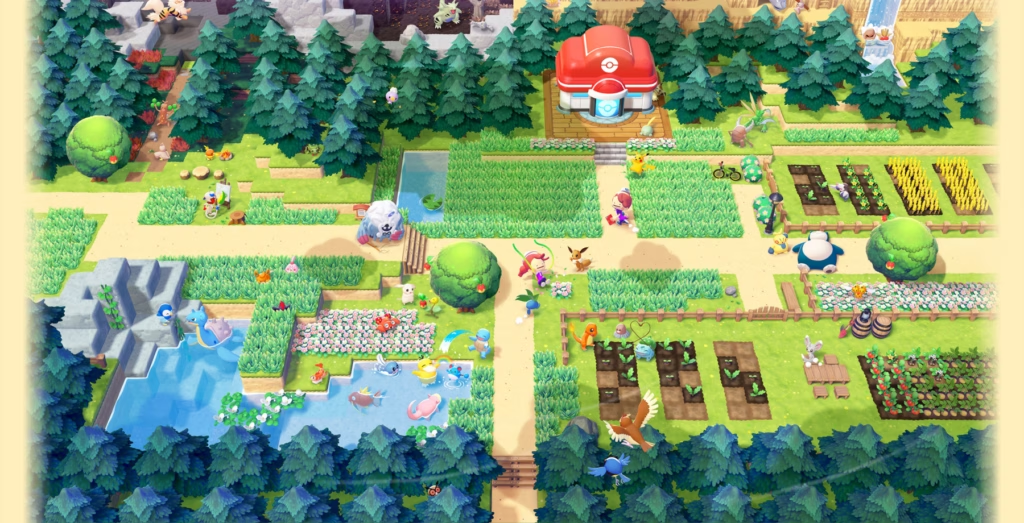
This requires players using GameShare, and it requires one person to own Pokémon Pokopia on the Switch 2. The process may take a small bit to achieve, but eventually, players with a friend using the Switch 1 will be able to play a bit of Pokémon Pokopia.
Here is how.
Step 1: Unlock Pallet Town
For those who own a Switch 1 and want to play Pokémon Pokopia, they first need to rely on their Switch 2 friend to unlock Pallet Town. Luckily, this happens early on in the game and is not too difficult to make happen.
Step 2: Access PC
When in Pallet Town, you will then need to access the PC and select Link Play. From here you will be prompted to invite others to visit through GameShare, which will allow people without the game to join your world, including Switch 1 players.
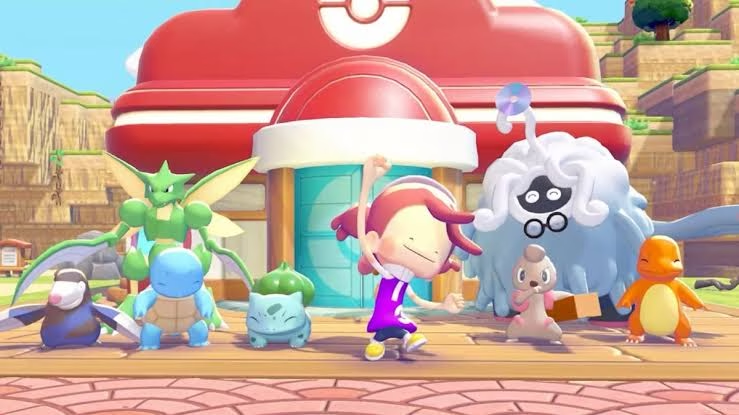
Step 3: Connect Switch 1
Now, this is where the player with the original Switch comes into play. Those who have the Switch 1 will need to open the Game Menu and choose GameShare. They will then have the option to select a local user, which will let them join their friend’s Pokémon Pokopia world.
This process works for those on the Switch 2 who also do not own the game, making the process a great way for players to give Pokémon Pokopia a try before purchasing it.