

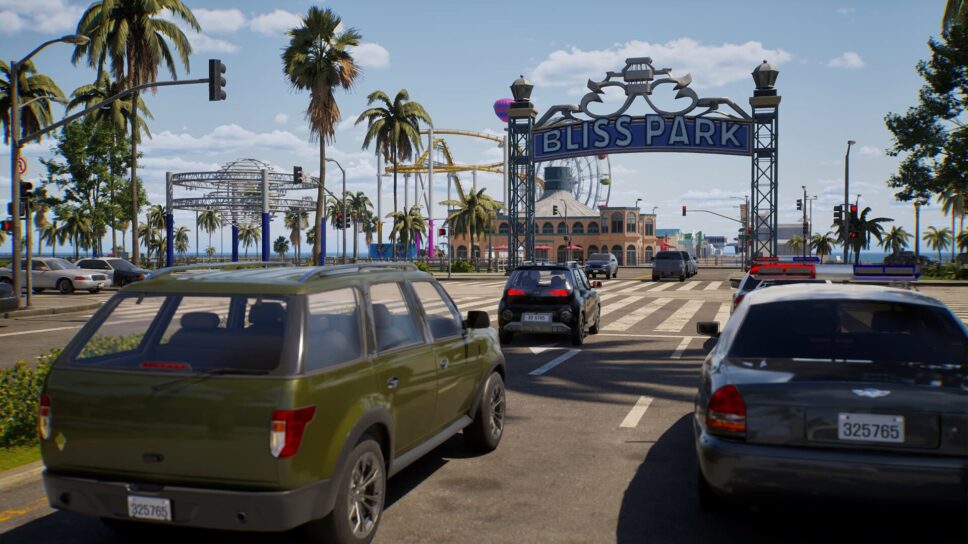
We've got you covered with the best settings for every single category that you'll find in the life sim game inZOI.
There are a handful of settings tabs to fiddle with in inZOI, and of course, you’ll want the best overall settings while playing the game. That’s why we’re here. We’ll go through each category for you and let you know the best options to choose.
When it comes to the likes of audio and graphics, you may have a different preference. And that is totally fine. We’ll give you choices for quality and performance, and you can choose to use them as a starting point and adjust according to fit the needs of your system.
The best graphics settings to use in inZOI
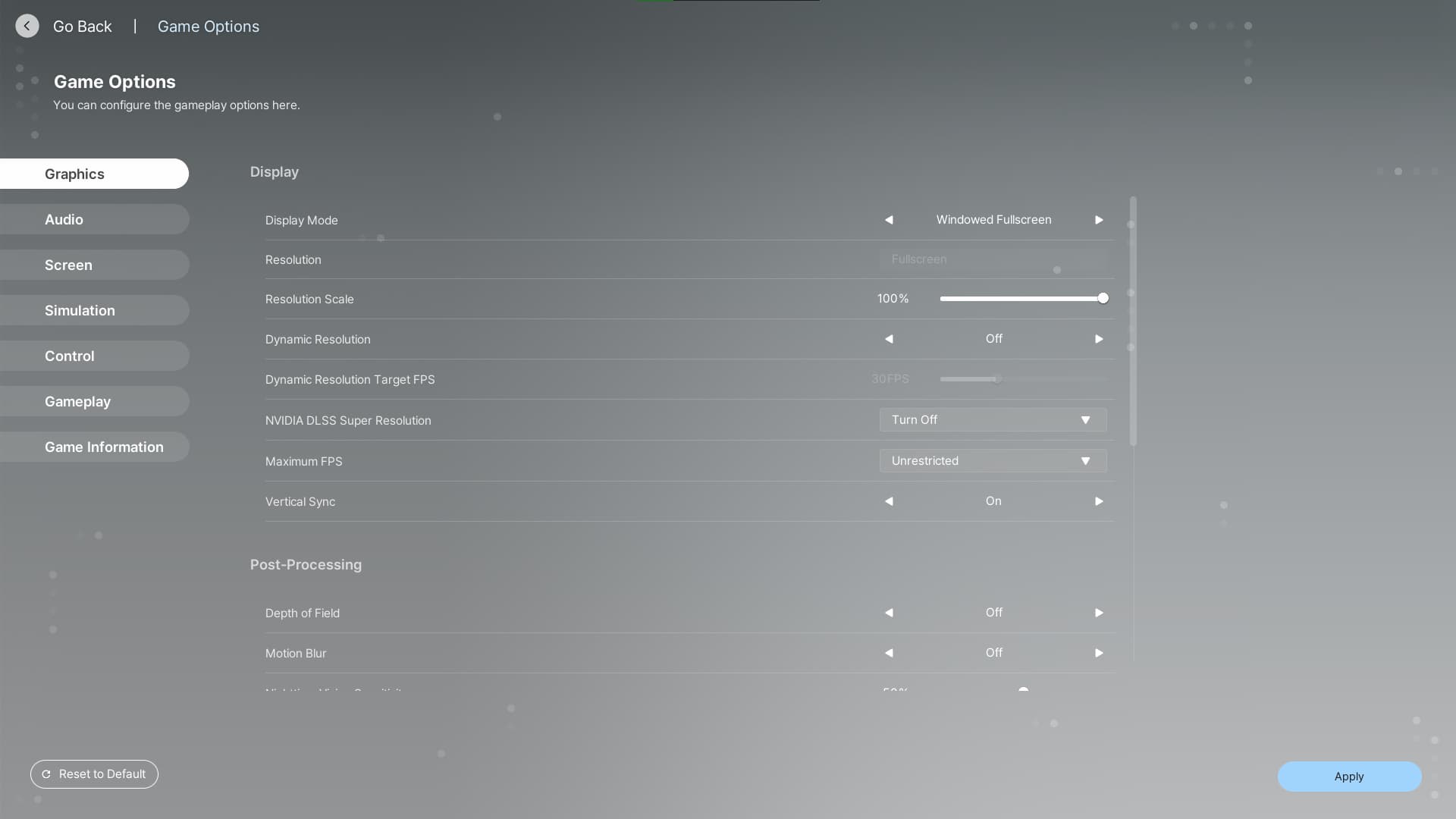
Let’s start with the best graphics settings for inZOI. Here’s a table to let you know what we think are the best options for the highest quality or if you need to lower it for better performance:
| Setting | For Quality | For Performance |
| Display Mode | Windowed Fullscreen | Windowed Fullscreen |
| Resolution | Fullscreen | Fullscreen |
| Resolution Scale | 100% | 100% |
| Dynamic Resolution | Off | Off |
| Dynamic Resolution Target FPS | N/A | N/A |
| NVIDIA DLSS Super Resolution | Turn Off | Turn Off |
| Maximum FPS | Unrestricted | 30 to 60 |
| Vertical Sync | On | Off |
| Depth of Field | On | Off |
| Motion Blur | Off | Off |
| Nighttime Vision Sensitivity | 50% | 50% |
| Ray Tracing | On | Off |
| Occlusion Method | Hardware | Hardware |
| Character Display Distance | Ultra | Low |
| Lighting Display Distance | Ultra | Low |
| Object Display Distance | Ultra | Low |
| Background Detail Quality | Ultra | Low |
| Anti-Aliasing Mode | TAA | TAA |
| Anti-Aliasing Quality | Ultra | Low |
| Post-Processing Quality | Ultra | Low |
| Shadow Quality | Ultra | Low |
| Shadow-Casting Lighting Effect | On | Off |
| Global Illumination Quality | Ultra | Low |
| Ray Tracing Object | Actual Mesh | Fallback Mesh |
| Reflection Quality | Ultra | Low |
| Texture Quality | Ultra | Low |
| Effects Quality | Ultra | Low |
| Plant Density and Quality | Ultra | Low |
| Shader Quality | Ultra | Low |
| Ray Tracing Quality | Ultra | Low |
If your PC can run it on Ultra settings, it will showcase a beautiful world for you to discover. Otherwise, take it a step at a time with Low settings. And if that doesn’t do the trick, there’s also a Very Low preset option. You can also simply click the Auto Select button for it to read your system and optimize the settings for it.
Audio settings
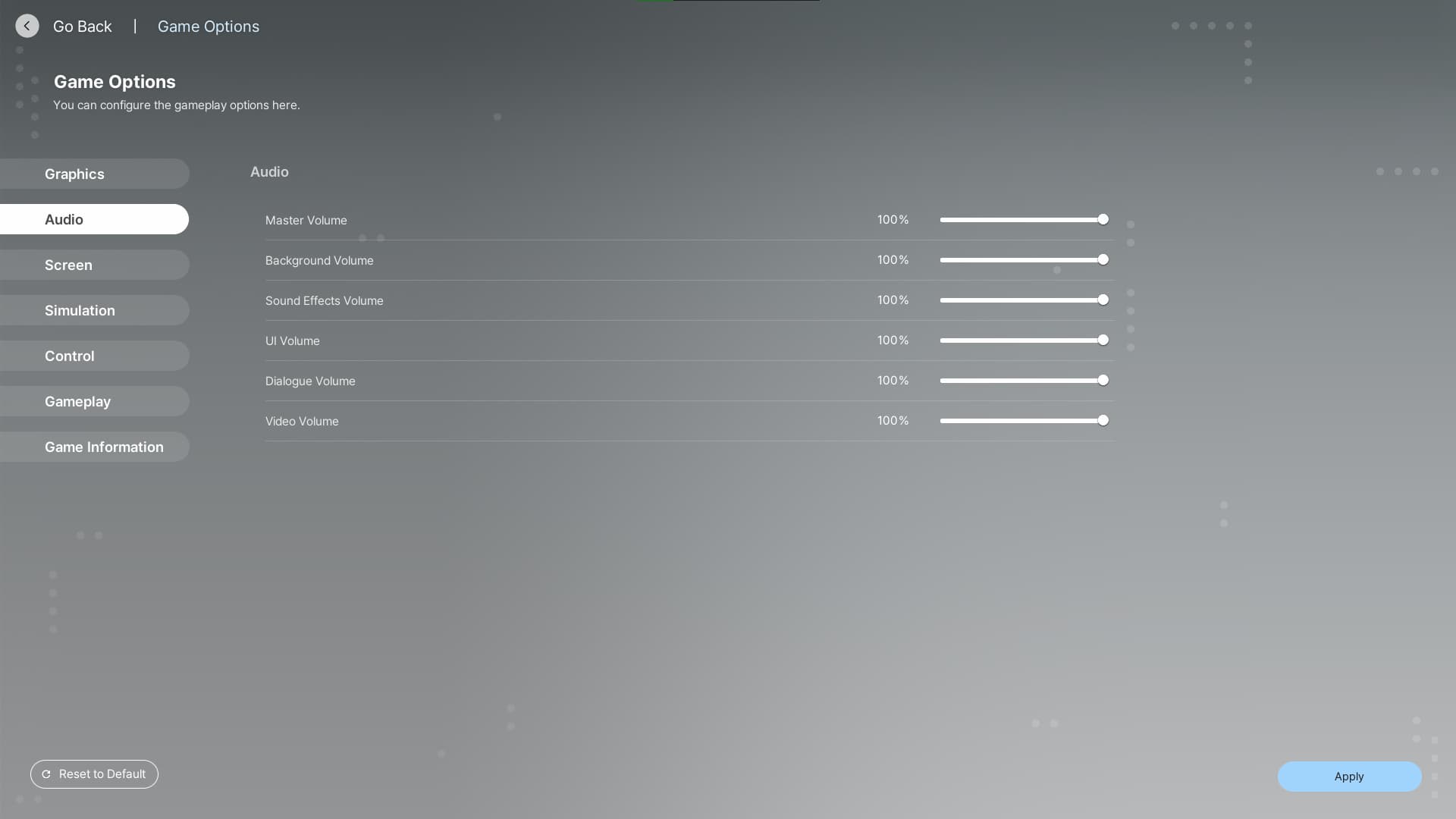
This one is pretty simple and completely up to you. Here are all of the options, but we recommend leaving everything all the way up. Unless something annoys the heck out of you, of course.
- Master Volume: 100%
- Background Volume: 100%
- Sound Effects Volume: 100%
- UI Volume: 100%
- Dialogue Volume: 100%
- Video Volume: 100%
Screen settings
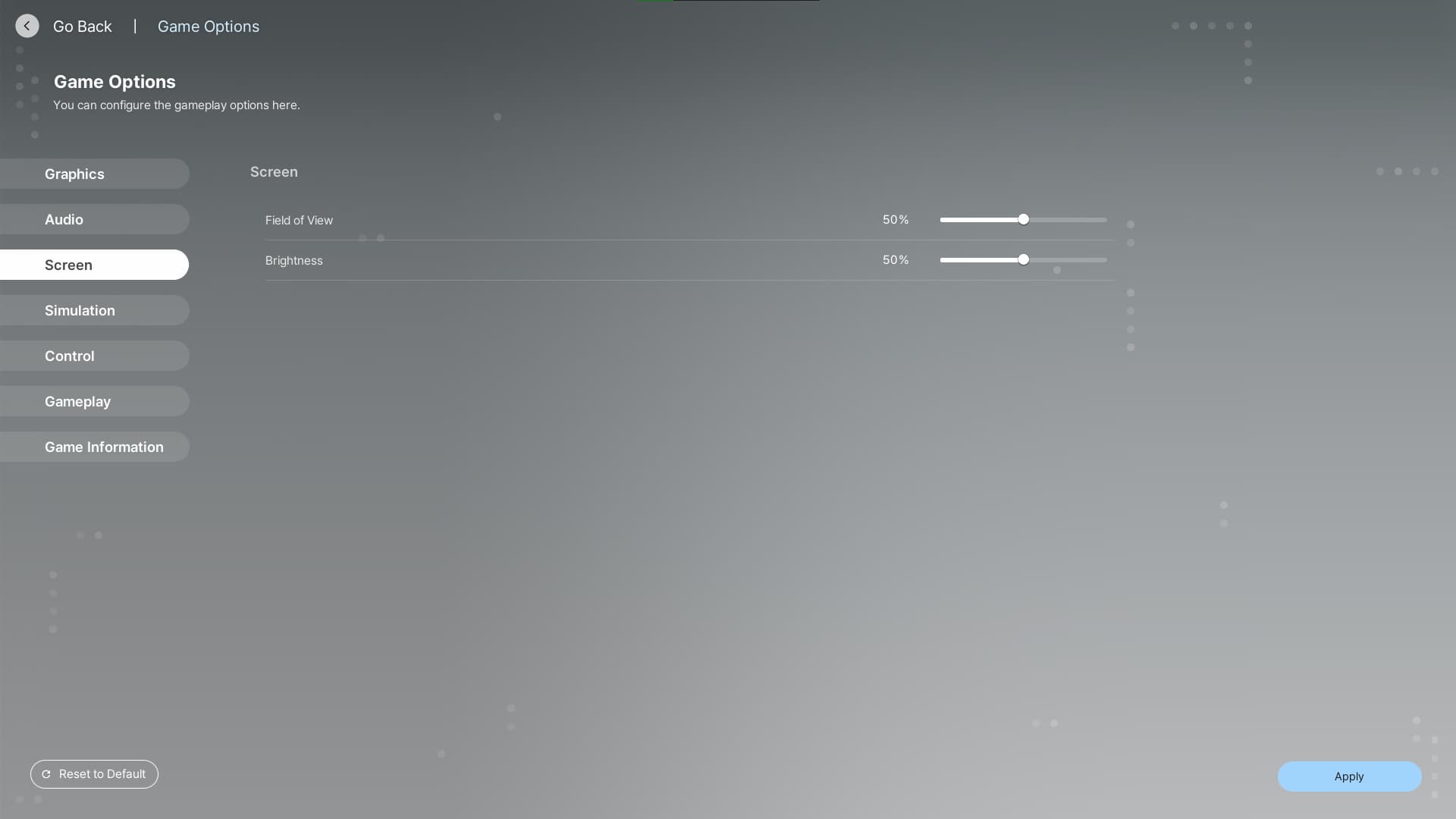
This is also pretty straightforward. We find the default settings to be the best for the Screen option in inZOI, but you can change it to your liking if necessary.
- Field of View: 50%
- Brightness: 50%
Best Simulation settings in inZOI
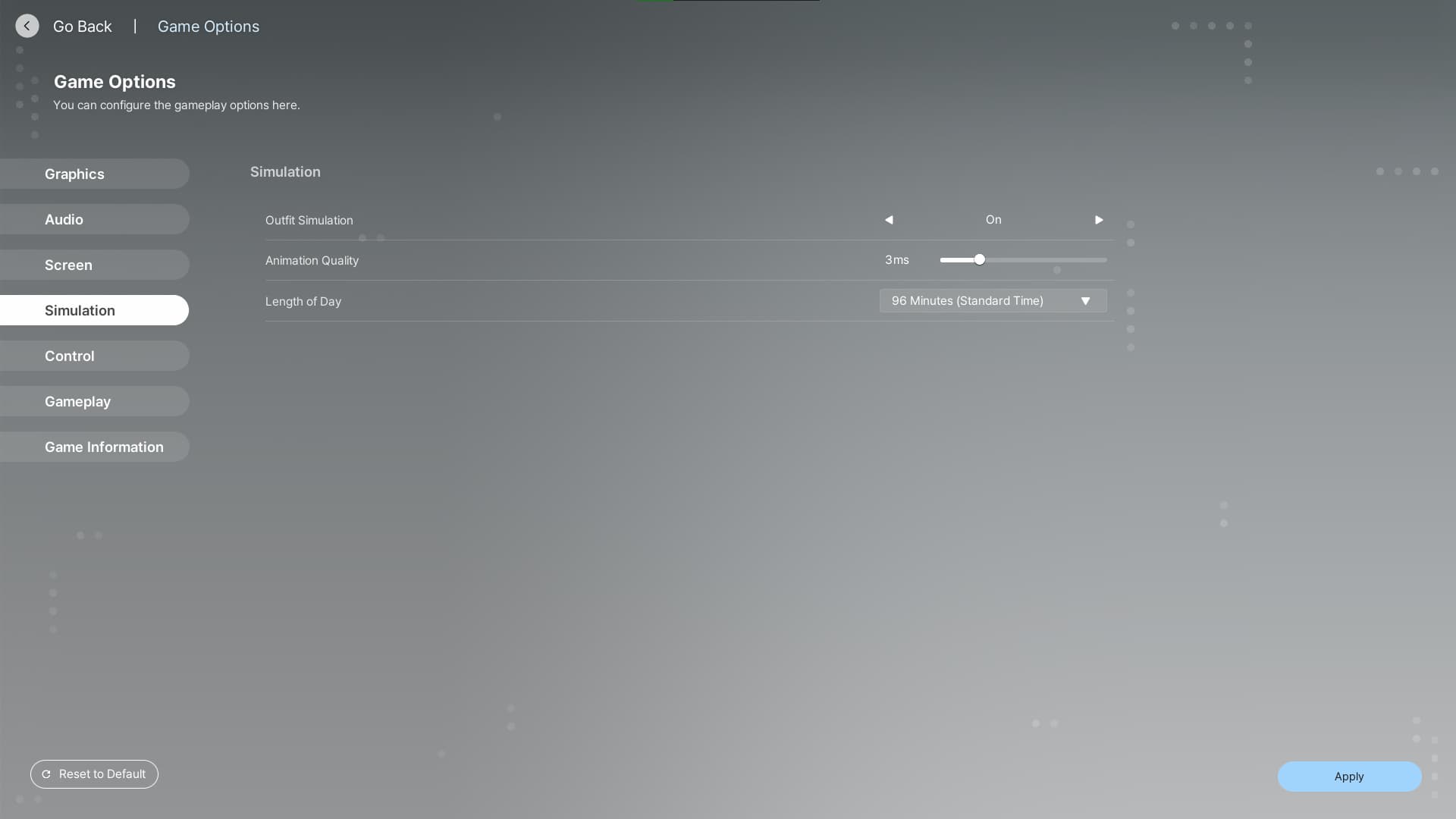
Now we get into the meat of the game and its simulation aspects. For these, you’ll decide how much animation you want on outfits, such as fabric blowing in the wind. You can also set how long the days last and the quality of animations, with the lower the setting meaning the smoother the movement.
- Outfit Simulation: On
- Animation Quality: 3ms
- Length of Day: 96 Minutes (Standard Time)
Control settings
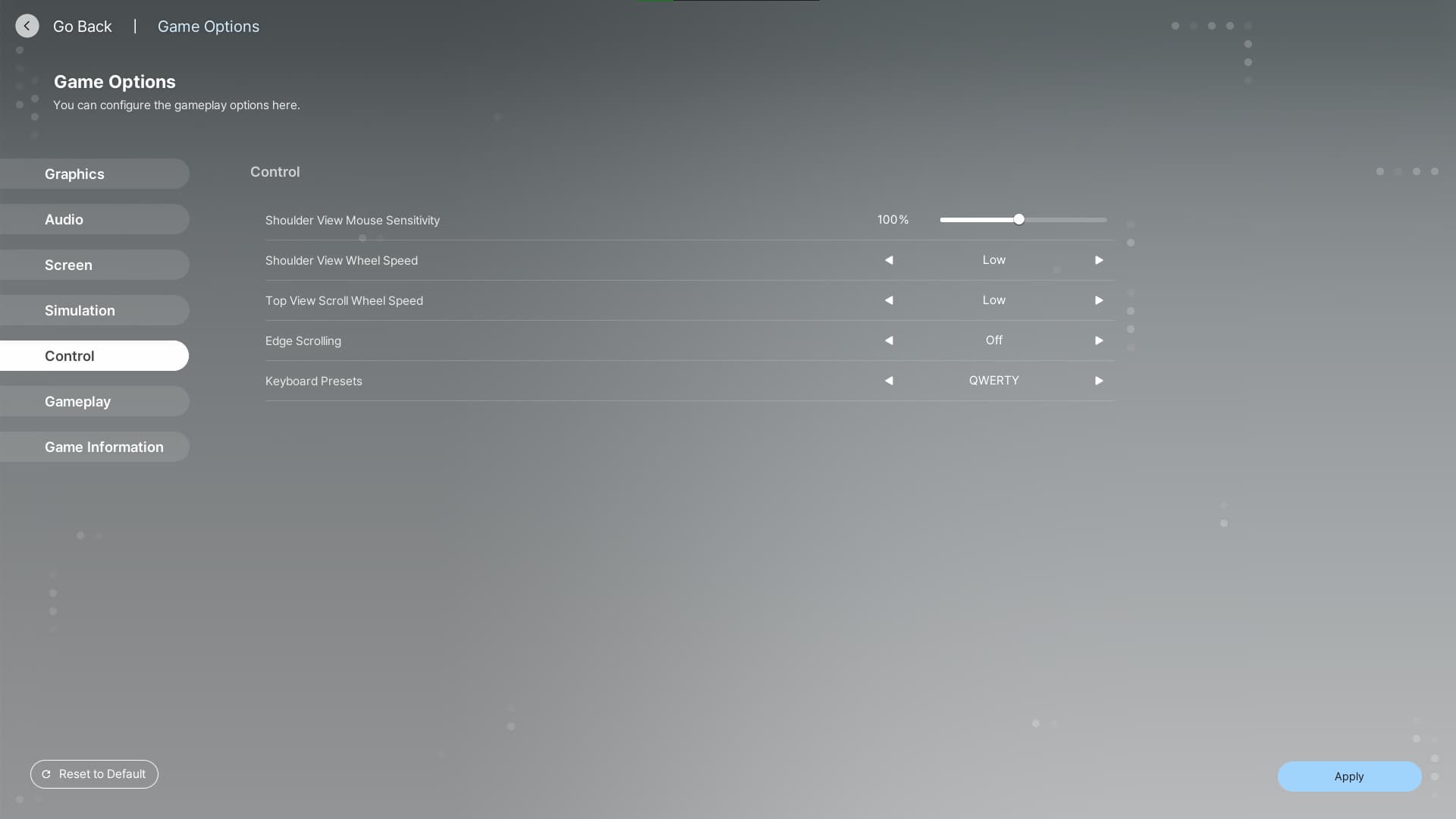
Next up is the Control. This is a smaller list that we expect to grow someday. At PC Early Access launch, there is no controller support, and there are no keybinds to map. All button inputs remain default, so you’ll get these settings to choose from:
- Shoulder View Mouse Sensitivity: 100%
- Shoulder View Wheel Speed: Low
- Top View Scroll Wheel Speed: Low
- Edge Scrolling: Off
- Keyboard Presets: QWERTY
The best Gameplay settings for inZOI
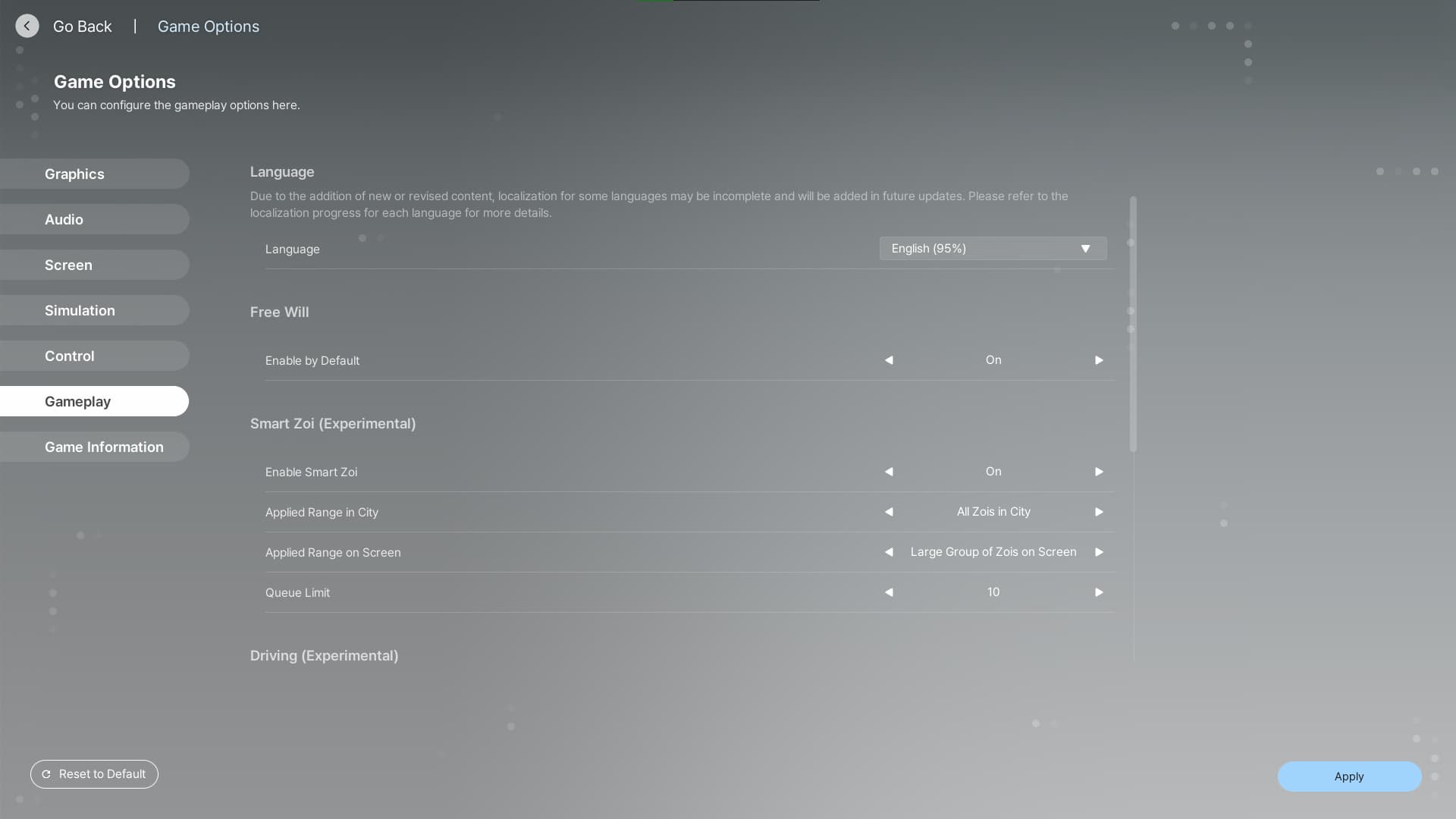
And lastly, we touch on the best settings for the Gameplay category in inZOI. These determine how your Zoi moves about on its own, if enabled, and other aspects that are experimental for the time being.
- Language: Choose your language of preference, but note the percentage next to it for the content that is localized in that language.
- Enable Smart Zoi: Choose On for the most realistic simulation experience.
- Applied Range in City: All Zois in City
- Applied Range on Screen: Large Group of Zois on Screen
- Queue Limit: 10
- Enable Manual Driving: On
- Enable Auto Save: On
- Auto Save Interval: 10 min
- Popup Auto-Close: On
- Character Name Format: Follow Language Settings
- Temperature Scale: C or F depending on what you use personally.
Stay tuned to esports.gg for more esports news and inZOI coverage.