


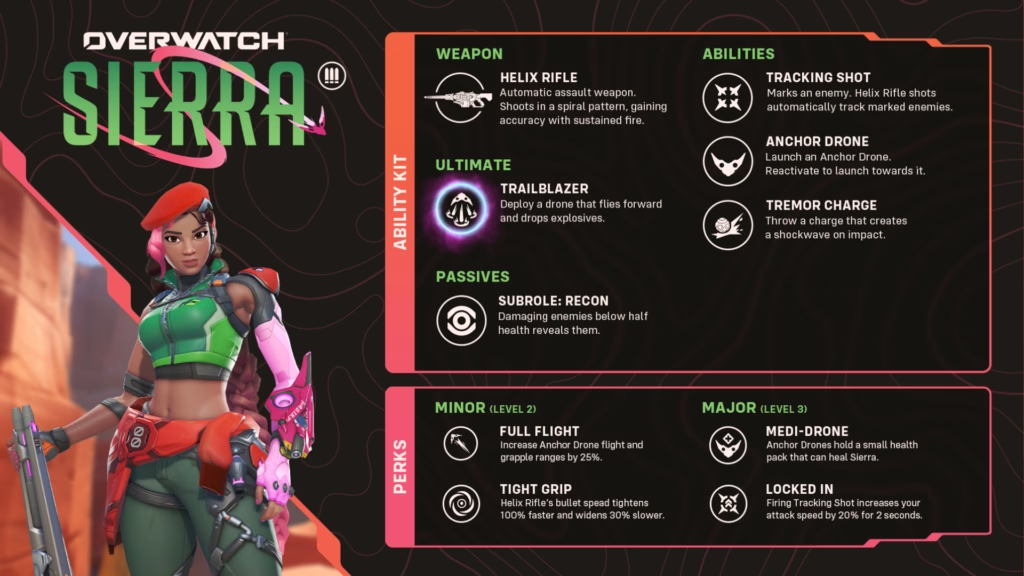
Overwatch Season 2 goes live on April 14 with a brand-new DPS hero. Here's how to download the patch ahead of time.
The next season of Blizzard Entertainment’s hero shooter kicks off on April 14 at 11 a.m. PT, and players can pre-download the Overwatch Season 2 patch ahead of time. Read on for instructions on how to do this plus how to automate your future Overwatch updates.
How to pre-download Overwatch Season 2
- Launch Battle.net
- Log in to your Battle.net account
- Click on the Overwatch logo
- Press the gear icon located next to the “Play” button
- Click on text that reads “Check for Updates”
- Download the update
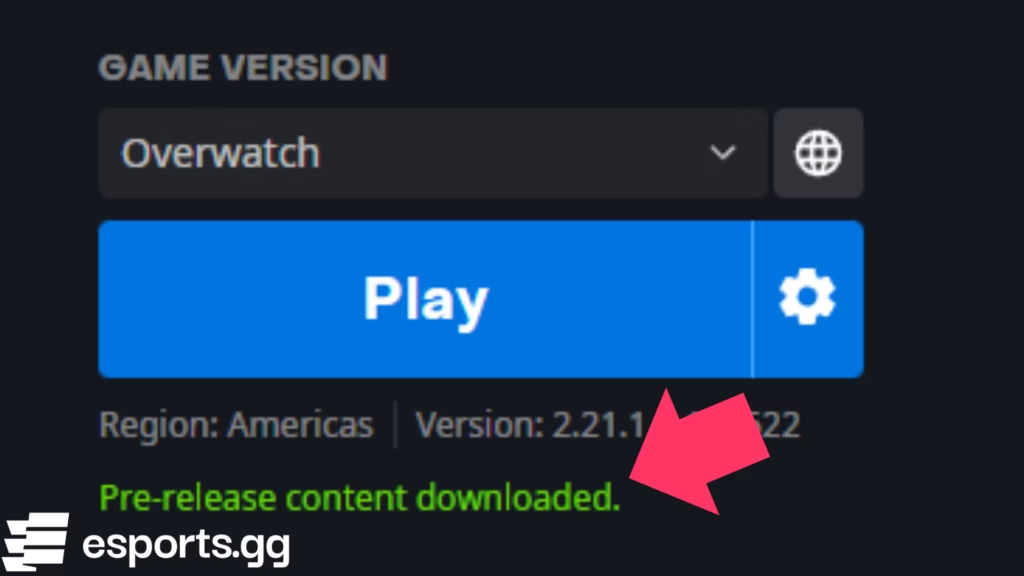
To pre-download Overwatch Season 2, launch Battle.net, sign to your account and click on the Overwatch logo. Next, click on the “Settings” icon that’s located beside the “Play” button. There should be a “Check for Updates” option. Click on it to begin downloading the update. After pre-downloading the patch, there should be some green text under the “Play” button that states “Pre-release content downloaded.”
How to pre-load the Overwatch Season 2 automatically
- Press the gear icon located next to the “Play” button
- Select the “Game Settings” option
- Click on the “Downloads” option
- Scroll to the “Automatic Updates” section
- Choose your Overwatch update preferences
- Press the “Done” button
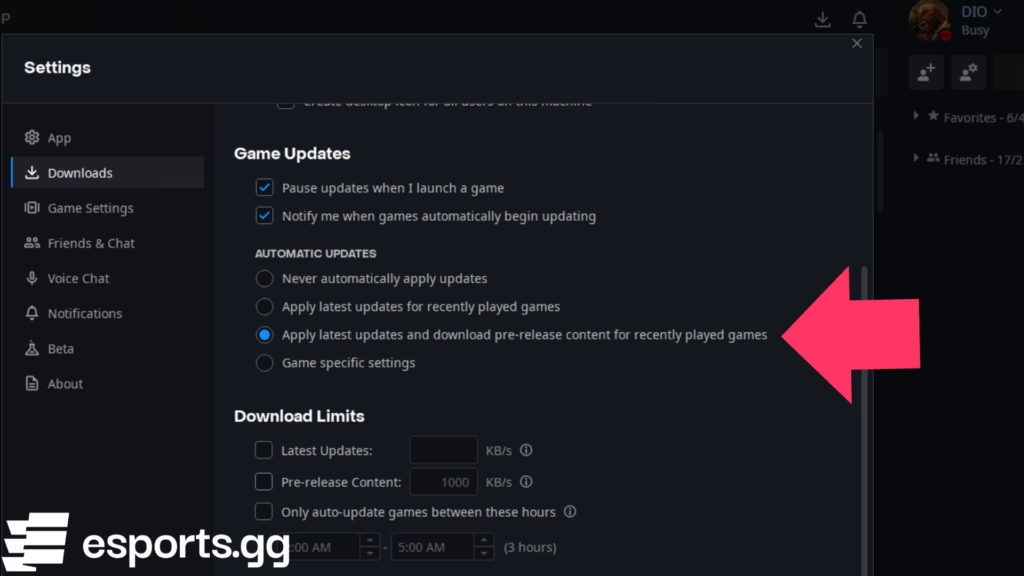
If you would like to get Overwatch updates automatically moving forward, then do so by pressing the “Settings” or gear icon next to the “Play” button again. Then, choose the “Game Settings” option and click on the “Downloads” option. Head to the “Automatic Updates” section, choose “Apply latest updates and download pre-release content for recently played games,” and press the “Done” button.
That’s all for now. Are you ready for Overwatch Season 2? Stick around on esports.gg for the latest Overwatch news and updates.