

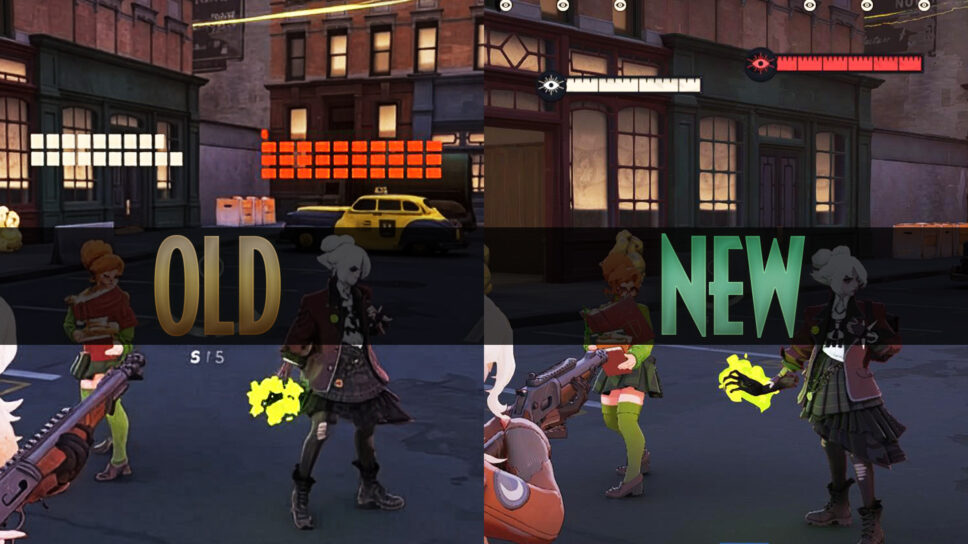
Here's a short guide on how you can get the newer health bars in Deadlock. This reduces visual clutter and just looks cleaner.
Deadlock may not have its full release yet, but it is already a deep game. This is true in terms of heroes and gameplay, but the same applies to settings and personalization. Here’s how you can get the alternative, updated health bars in Deadlock.
Deadlock alternate health bars guide
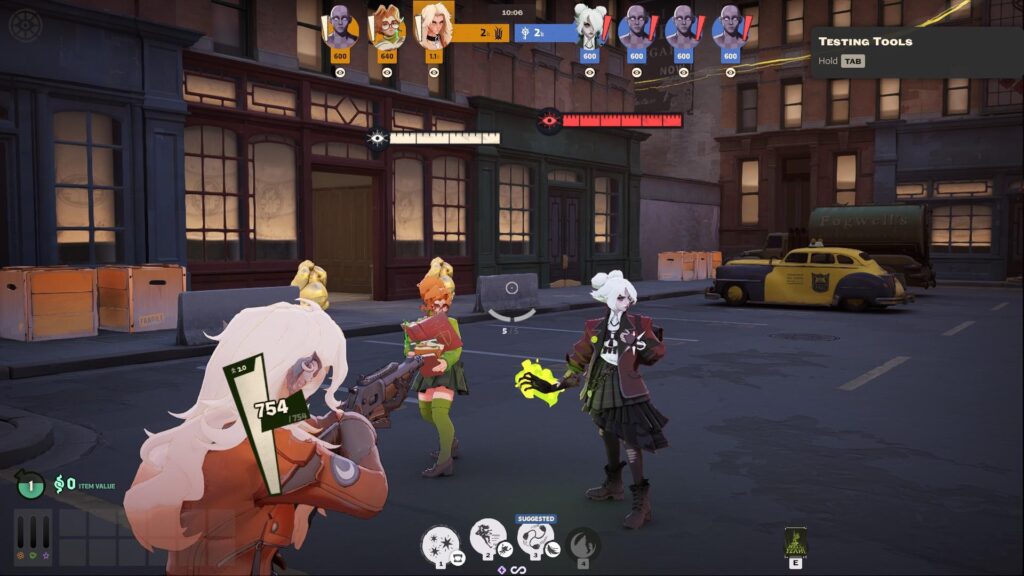
The updated health bars reduce clutter in the game. If you’re coming from other MOBAs like League of Legends or Dota 2, or even hero shooters like Marvel Rivals, the updated HP bars in Deadlock are more intuitive.
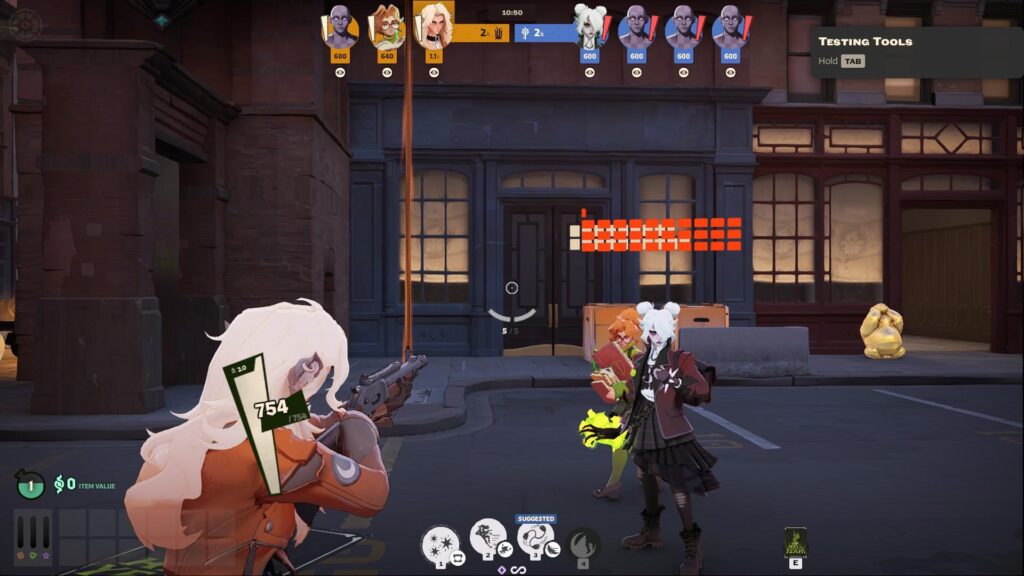
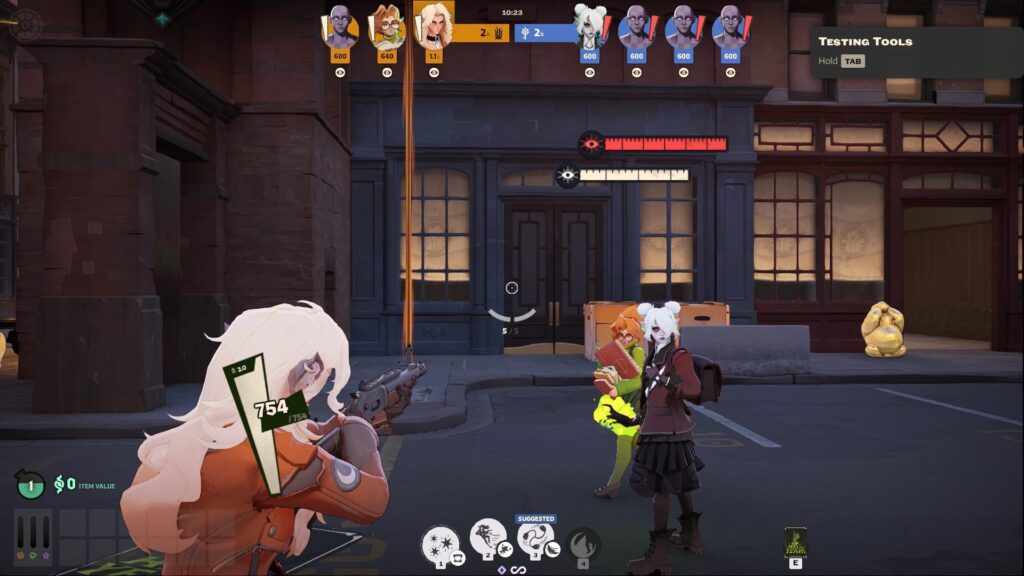
There are two ways to swap between the old and new health bars in Deadlock. First is a temporary way, allowing you to easily switch while in-between games. The other is a more permanent solution, which will keep the option even after you close and then reopen the game.
This setting will change most health bars in the game, including ally and enemy heroes, structures, and neutral camps. Lane creeps are mostly unchanged.
Trying out the new health bars
For the temporary option, make sure you have the Dev command console activated.
You can do this by going to the settings and searching “Console”, or finding it under Game > Interface > Dev command console.
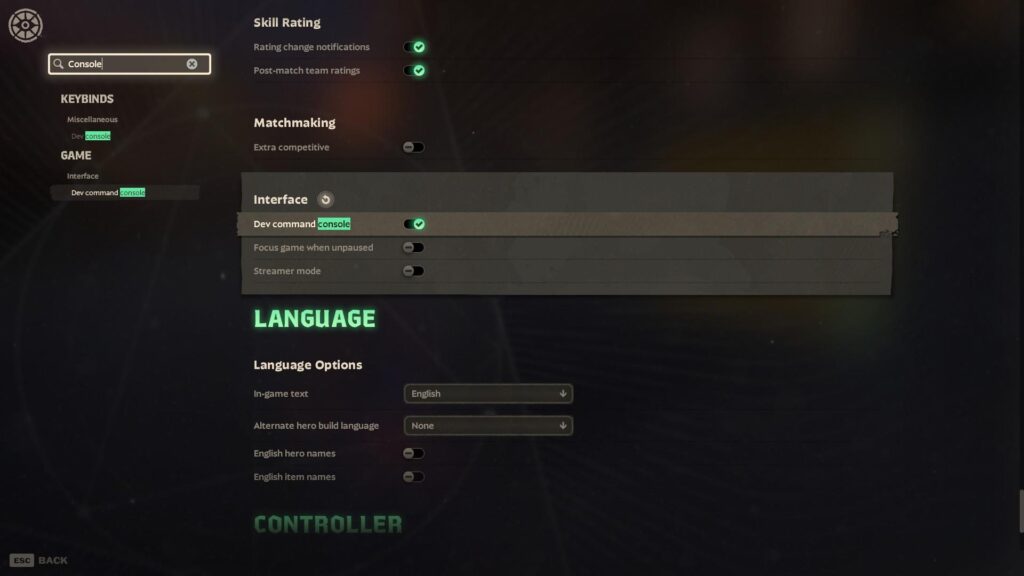
Afterwards, double-check where the console is bound in Keybinds > Miscellaneous > Dev console. By default, the key is F7.
While in the Hideout, all you need to do is type in the following command in the console, then press Enter.
citadel_unit_status_use_new true
The console will not have a response — this is the expected result. Your next game will have all the updated HP bars for every unit in the game. If you want to try it out in the Hideout or the Sandbox, just use the teleporter to exit the area (either to the Sandbox or the Hideout), then teleport back in.
Note that using this method, the new HP bar will only persist on one game session. Restarting your game will cause it to go back to the old HP bar.
If you want to go back to the old HP bar without restarting your game, just paste in the following command:
citadel_unit_status_use_new false
Persistent new HP bars in Deadlock
Here is the more permanent solution. First, make sure Deadlock is not running.
- Go to your Steam Library
- Find Deadlock.
- Click the Gear icon on the right, then click Properties.
- Under General > Launch Options, paste the following command:
+citadel_unit_status_use_new true
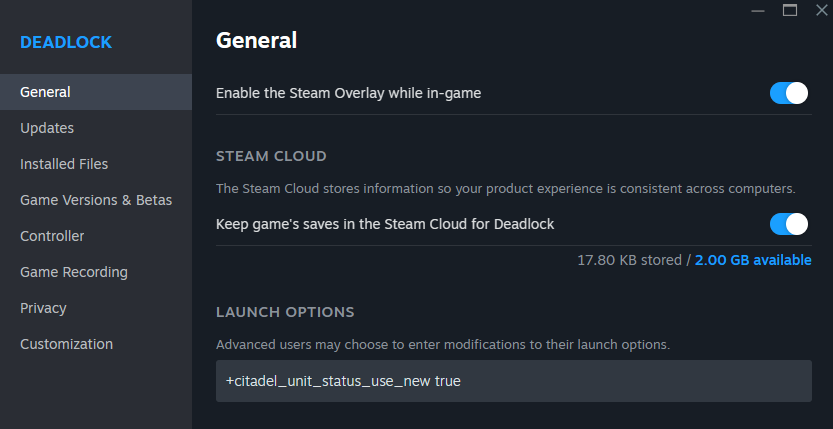
Every time you launch the game, it will now have the new HP bars. If you want to reverse this effect, simply remove the command from the Launch Options field.
Deadlock is currently in early development, and there may be an easier way to switch between the health bar displays as the game is worked on. This guide is confirmed working as of the Old Gods, New Blood major update in Jan. 2026.